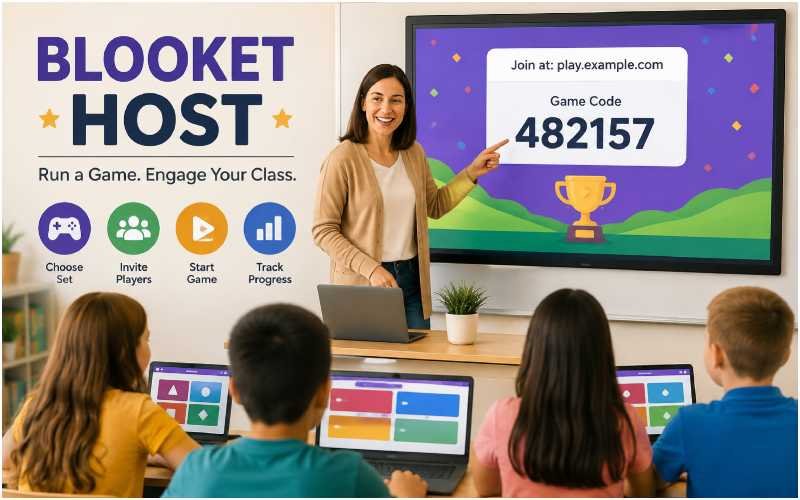
Becoming a Blooket host takes about three minutes once you know the sequence: log in, pick a question set, choose a game mode, and share the join code. This guide walks through the full setup, the game modes worth knowing, and the mistakes that quietly kill classroom engagement.
What Does It Mean to Be a Blooket Host?
A Blooket host is the person, usually a teacher, who creates and runs a live game session that players join using a code. As the host, you control the question set, the game mode, and the pacing, while a live dashboard shows you which students are answering correctly in real time.
How Do You Host a Blooket Game, Step by Step?
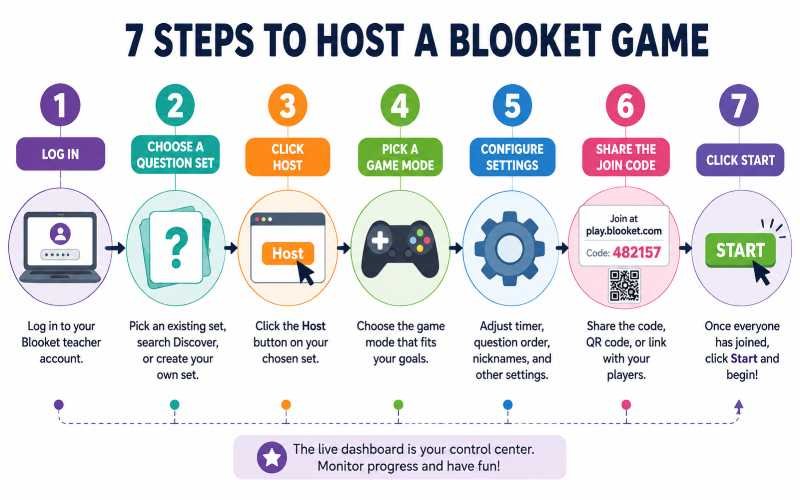
- Log in to your account. Go to id.blooket.com and sign in with your teacher account. A free account covers nearly everything most classrooms need.
- Choose or create a question set. Use an existing set from your library, search the Discover tab for a public set by subject and grade, or build your own with at least 15 questions so the game does not feel repetitive.
- Click Host on your chosen set. This opens the game mode selection screen.
- Pick a game mode. Your choice changes the entire feel of the session, from luck-based to accuracy-based play.
- Configure your settings. Adjust the timer, question order, and whether players see nicknames or anonymized ones.
- Share the join code or link. Students go to play.blooket.com and enter the code, scan a QR code, or click a shared link.
- Click Start once everyone has joined. The live dashboard becomes your control center for the rest of the session.
Which Blooket Game Mode Should You Choose?
| Game Mode | Best For | Why It Works |
|---|---|---|
| Gold Quest | Leveling the playing field | Adds an element of luck, so stronger and weaker students stay competitive |
| Tower Defense | Rewarding accuracy | Correct answers directly build defense, favoring focus over speed |
| Racing | Quick review sessions | Fast-paced and competitive, ideal for short class blocks |
| Fishing Frenzy | Casual engagement | Lower-pressure format that still reinforces content |
What Can You Control From the Host Dashboard?
Once a game is live, the host dashboard lets you view player scores in real time, monitor who is struggling with specific questions, and end or restart the session if something goes wrong. This live view is what separates Blooket from a static quiz: you can adjust your teaching on the spot if the data shows a concept isn’t landing.
Can Students Host a Blooket Game Too?
Yes. Hosting controls are identical on student and teacher accounts, so a student can build their own set and run a game for classmates or friends. Teacher accounts add classroom-specific tools like roster management and, on paid tiers, deeper reporting, but the core Blooket host experience works the same for anyone with an account.
What Mistakes Do New Hosts Make?
- Using a question set with fewer than 15 questions, which makes the game feel short and repetitive
- Picking a high-pressure mode like Racing for a review session where struggling students need more time to think
- Skipping a settings check before starting, which can leave nicknames visible when anonymity would have been better for a sensitive topic
- Not glancing at the live dashboard during the game, missing the chance to pause and reteach a concept students are clearly missing
Quick Answers
Do students need an account to join? No. Students only need the game code or link; an account is not required to play.
How long does a typical Blooket session take? Most sessions run 10 to 20 minutes, depending on the question set size and game mode.
Is Blooket free to use? Yes. According to Blooket’s official Quick Start Guide, the free plan covers question creation, hosting, and reporting, with an optional paid tier for deeper analytics.
Can you host a Blooket game on a phone or tablet? Yes, hosting works on any device with a browser, though a larger screen makes it easier to monitor the live dashboard during a session.
If you’re building out a broader toolkit for interactive lessons, our piece on how students use micro-tech to enhance learning efficiency covers other classroom tools worth pairing with a Blooket host game.
Written by: CupOfJo Editorial Team
Last updated: August 13, 2026
Basis for this article: Researched using Blooket’s official help documentation and independent classroom-technology coverage.
What this article does not cover: Interface details change with product updates. Always check Blooket’s official help center for the current dashboard layout before your first session.
Corrections: If anything here is inaccurate or out of date, contact us and it will be corrected.
This piece is part of Cupofjo.org’s general Blog coverage, outside our core Fashion & Style, Food & Recipes, and Lifestyle & Home pillars.