
Imagine your website is a high-speed train, but every time the first passenger boards, the engine is cold and refuses to start. That frustrating delay is exactly what happens when a user hits an uncached page. In 2026, a one-second delay can cost you 20% of your conversions. This guide explains how to use a warmup cache request to keep your site blazing fast for every single visitor.
What is a Warmup Cache Request?
At its simplest, a warmup cache request is a proactive “ping” to your server. Instead of waiting for a real visitor to trigger a page load, an automated script or tool does it first.
When this request happens, the server builds the page, gathers the data, and stores it in the “cache” (a temporary high-speed storage area). By the time a real human arrives, the page is already “warm” and ready to serve instantly. If you’re exploring more helpful digital tools to improve your workflow, check out our detailed guide on the latest online tools and gadgets.
Why Speed Matters in 2026
Search engines like Google now prioritize “Instant-On” metrics. If your server is “cold,” it has to work harder, which slows down the Time to First Byte (TTFB). Using a warmup cache request ensures your TTFB stays low, keeping both users and search bots happy. You can test your website’s performance using Google PageSpeed Insight to see how your Core Web Vitals scores affect rankings.
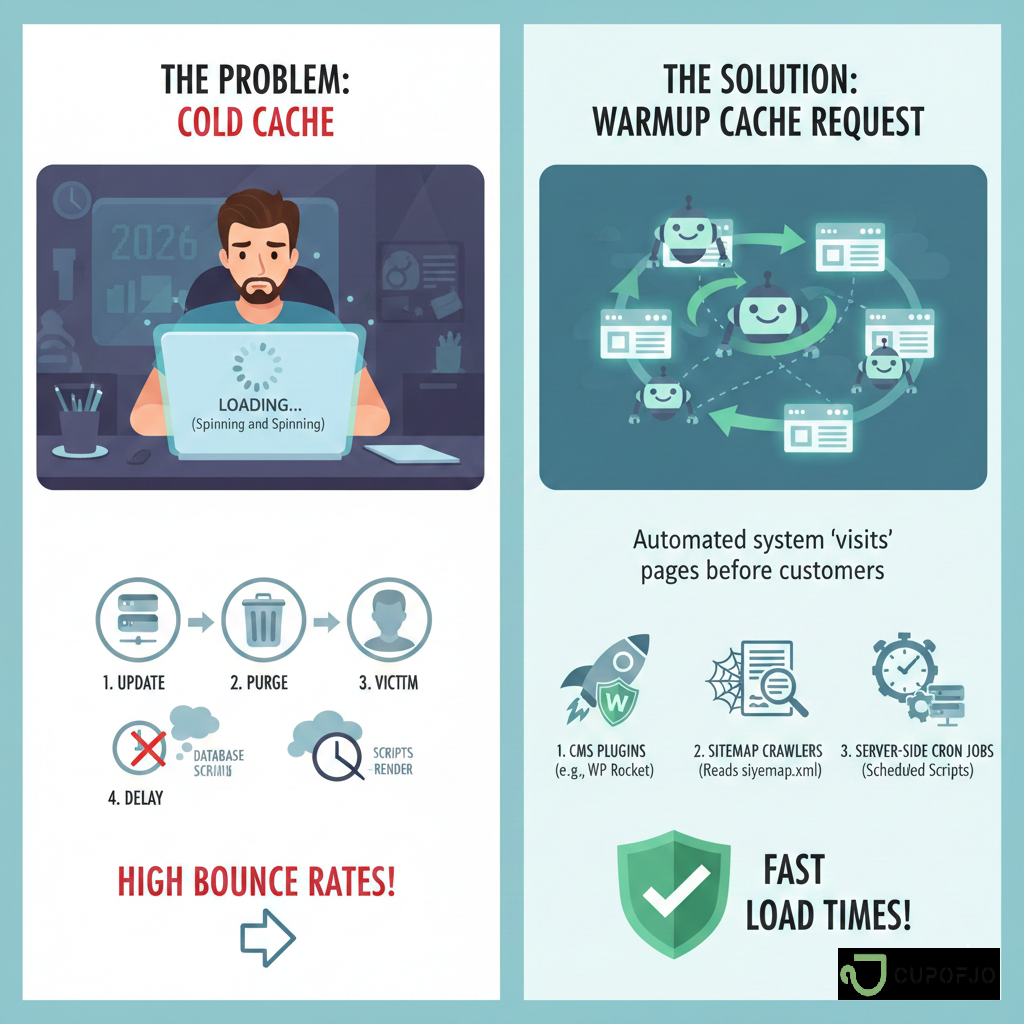
The Problem: The “Cold Cache” Experience
We’ve all been there. You click a link, and the browser tab spins… and spins.
The Scenario
- The Update: You just pushed a big update to your website.
- The Purge: To show the new version, you clear your old cache.
- The Victim: The first customer of the morning clicks your link.
- The Delay: Because the cache is empty, the server has to talk to the database, process scripts, and render the layout from scratch.
This “Cold Start” problem leads to high bounce rates. People don’t wait in 2026; they click the back button.
The Solution: Implementing a Warmup Cache Request
To fix this, you need an automated system that “visits” your pages before your customers do. This process is often called Cache Crawling or Preloading.
How to Trigger a Warmup Cache Request
There are three proven ways to handle this effectively:
- CMS Plugins: If you use WordPress, tools like WP Rocket automatically send a warmup cache request whenever you update a post.
- Sitemap Crawlers: You can use scripts that read your xml and “touch” every URL listed.
- Server-Side Cron Jobs: For custom-built sites, a simple script can be scheduled to run every hour to ensure the most popular pages never go “cold.”
Benefits of Proactive Cache Preloading
Using a warmup cache request isn’t just about speed; it’s about server health.
| Feature | Cold Cache | Warmed Cache |
| User Experience | Frustratingly slow | Instantaneous |
| Server Load | Spikes on every “first” visit | Smooth and predictable |
| SEO Ranking | Penalized for slow LCP | Rewarded for speed |
| Conversion Rate | Low (Users bounce) | High (Users stay) |
Step-by-Step: Setting Up Your First Warmup Request
If you want to move beyond basic plugins, here is a practical way to manage your site speed.
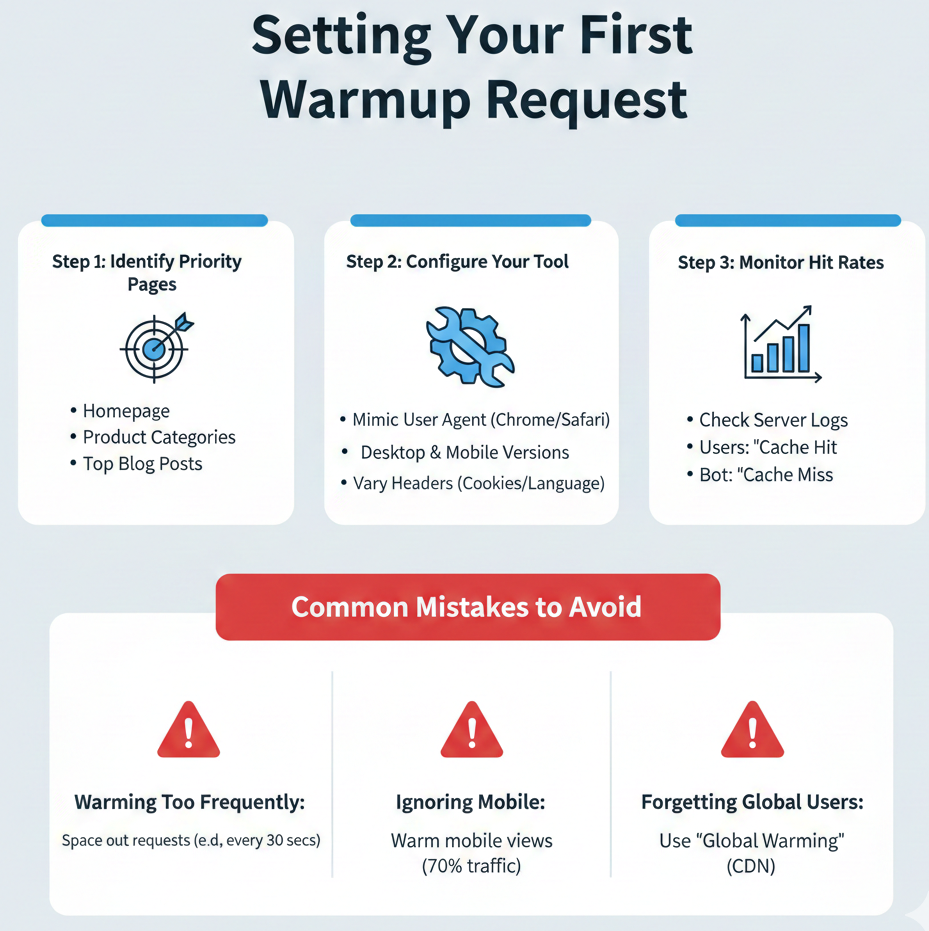
Step 1: Identify Priority Pages
Don’t warm everything at once if you have 10,000 pages. Focus on your homepage, product categories, and top-performing blog posts.
Step 2: Configure Your Tool
Whether you use a specialized service or a custom script, ensure the warmup cache request mimics a real user agent (like Chrome or Safari). This ensures the server caches the “desktop” and “mobile” versions correctly.
Step 3: Monitor “Hit” Rates
Check your server logs. You want to see “Cache Hit” for your users and “Cache Miss” only for your automated warmup bot.
Common Mistakes to Avoid
Even experts trip up when handling a warmup cache request. Watch out for these:
- Warming Too Frequently: Sending requests every 5 seconds can actually crash a weak server. Space them out.
- Ignoring Mobile: Many sites only warm the desktop version. Ensure your warmup cache request covers mobile views, as 70% of traffic is now mobile.
- Forgetting Global Users: If you use a CDN (Content Delivery Network), a request from New York might not warm the cache for a user in London. Use “Global Warming” features.
Technical Insight: Under the Hood
When a warmup cache request hits your site, the server checks the Cache-Control headers. If the request is valid, the HTML output is saved into the RAM or an SSD.
$Speed = \frac{ProcessingTime}{ResourcesAvailable}$
By pre-processing, you essentially reduce the $ProcessingTime$ to near zero for the end-user.
Real-Life Example: The E-commerce Launch
Imagine a shoe brand launching a new collection at 9:00 AM.
- Without Warmup: At 9:00:01, 5,000 people click the link. The server tries to build the page 5,000 times at once. The site crashes.
- With Warmup Cache Request: At 8:55 AM, the system sends a warmup cache request. The page is built and stored. At 9:00:01, the server simply hands out the “pre-made” page to all 5,000 people. No crash, just sales.
Conclusion
In the competitive landscape of 2026, speed is no longer a luxury—it is a requirement. Implementing a warmup cache request strategy is the most effective way to eliminate “First-Visit Lag” and keep your Core Web Vitals in the green. By being proactive rather than reactive, you provide a seamless experience that keeps users coming back.
Don’t let your hard-earned traffic disappear into a loading screen. Start preloading your content today and watch your engagement metrics soar. For more information visit Cup Of Jo
FAQs
1. Does a warmup cache request use a lot of bandwidth?
It uses a small amount of data because it’s only “loading” the page once to save it. Compared to the benefit of faster speeds for thousands of users, the bandwidth cost is negligible.
2. How often should I warm my cache?
Usually, you should trigger a warmup cache request only when content changes or after your cache expires (e.g., every 10–24 hours).
3. Will this affect my Google Analytics?
Most modern tools and plugins are smart enough to prevent the warmup cache request from being counted as a “fake visit” in your analytics.
4. Can I use this on a shared hosting plan?
Yes, but be careful. If you have thousands of pages, a massive warmup might temporarily slow down your site. Start with your top 10 pages and grow from there.